


Duplicating an existing checkout is a quick and easy way to save time, especially if you want to include similar things, like addons & upsells, or identical content on multiple checkouts.
If you plan to include some of the same things on all of your checkouts, we recommend spending some time creating a base checkout that you can use as a Template to duplicate from, for new checkouts.
When you duplicate a checkout, everything from offer details, to automation set up on the checkout would be part of the duplicate. The only real difference would be that the copy will have its own unique URL.
Duplicating a checkout
Navigate to your Checkouts page, and find the checkout that you would like to duplicate on your list.
While hovering over the checkout on the list, click on the … more options button, at the far right, and select the Duplicate.
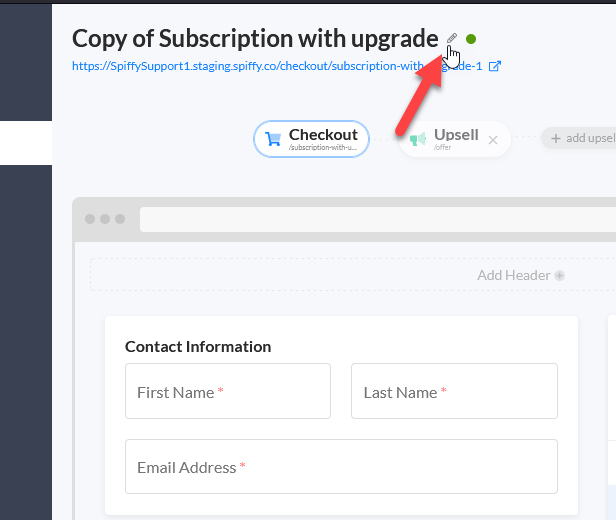
This will duplicate the checkout, and navigate you to the checkout editor. You will notice that the checkout name will be “Copy of” followed by the original checkout’s name.
You can change this internal name by clicking on the edit pencil icon.
Additionally, you can modify the URL slug of the new copied checkout by clicking Settings in the checkout editor sidebar.

Now you are ready to start modifying your duplicated checkout!