


Spiffy provides the ability for you to view your sales data from your Spiffy Checkouts, broken down into a few important lists:
- Orders
- Customers
- Subscriptions
- Payment Plans
- Payments
When you view one of these lists, you will have the ability to filter the results to get the data you are looking for. Be it a list of all failed payments or a list of active subscriptions.
Each list type will have some different filters for you to explore. You also have the option to export your sales data in full or filtered.
Table of Contents
Filtering Sales Data
Select a sales data-type from the Sales tab.
You will see the most common filters listed across the top for quick access. Or click More filters to see a complete list of all filters.
Each Filter will have a simple configuration pop-up. Configure accordingly, and click Add Filter to refresh your results.
You can select and configure additional filters. Multiple filters use ‘AND’ criteria, not ‘OR’.
Saving Filtered Results
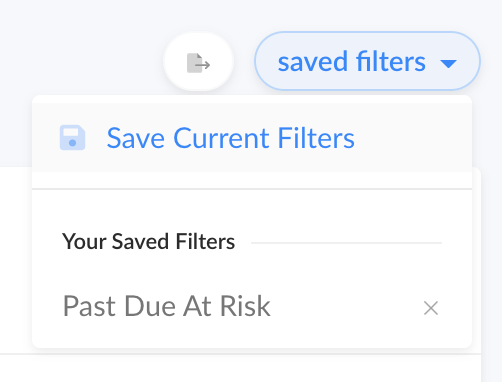
If you have added filters to a sales data list-type, you will have the option to save these filters for easy access.
Click the Saved Filters button and then select Save Current Filters and give your filter configuration a name.
Exporting Sales Data
Easily export your sales data to a CSV file. This can be used for more in-depth analysis and reporting. You can export a list as a whole, or with filters.
After you have selected a sales data type and applied any needed filters, click the export button.
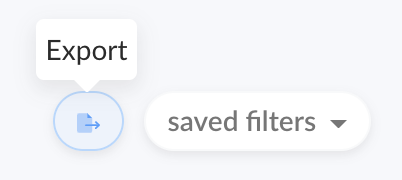
This will initiate a CSV download for you to save, and use as you see fit.