


Use an Addon block to present an on-checkout one-click upsell offer.
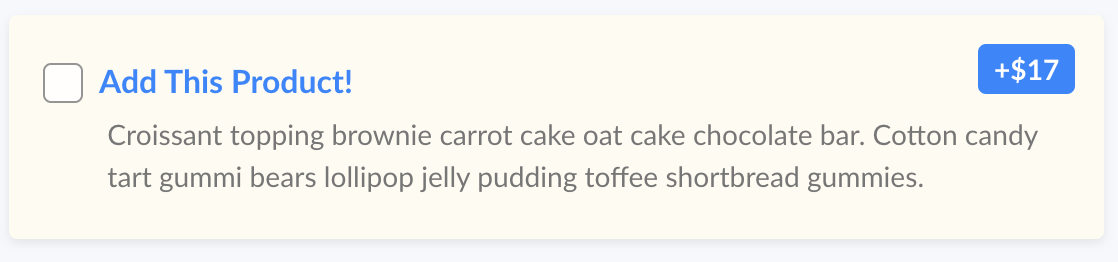
Addon order bump offers are a great way to increase average order value on checkouts. Customers can include another low-price point offer with their initial purchase. Sell upgrades, downloads, or additions that complement the rest of the purchase.
Add an addon
To add an addon offer, edit a checkout, click Add Section in the editor canvas, and click Addon. This will open the Settings panel for your new addon block to add content.
You can create a custom line item for your addon, or select one of your existing Products or Subscriptions.
Add an Image
You can choose to add an image to create more visual appeal for your addon offers. Use the ‘Image Position’ drop down to choose how you want the image to display: Left, Right, or Top Full Width.

Add automation
On all option-based blocks, you’re able to set up automations to run when a customer selects your addon—for example, add the customer to a course, add a tag in your CRM, or start an email sequence.
Just click Add Automation in the Settings panel.
Using a Product or Subscription as your addon? If you have automation set up at the product-level and here at the checkout level on the addon, both will run.