


Connect your Zoho CRM account in a few simple steps with Spiffy’s direct integration.
How to Connect Zoho
Zoho uses open authorization, so as long as you are logged in to your Zoho account you can easily connect to Spiffy.
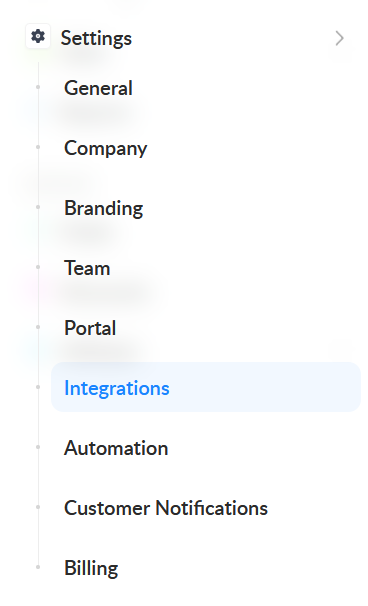
1. In Spiffy, at the bottom of the left navigation bar, click on Settings > Integrations
2. Find and select Zoho CRM from the list of available integrations
3. Click Connect Zoho CRM

4. Click Accept to allow Spiffy to access your Zoho account

5. You can use Enable Order Deal Sync to automatically create a new Deal in Zoho for each order completed in Spiffy. The toggle is on by default.
From the drop down lists, select the Contact Role, Order Deal Pipeline, and Order Deal Stage that you want for new Deals to be created in Zoho. This is a global setting in Spiffy, so it will apply to all orders.
6. Click Save Settings
You’ve now connected your Zoho account to Spiffy, don’t forget to set up Automations!
Learn more about Automations →