


Spiffy makes it easy to issue refunds to your customers. Since payments are stored in Order, Subscription & Payment Plan records, you can issue refunds on payments from any of these record types.
Navigate to your customer’s Order, Subscription or Payment Plan record and locate the Payments section.

- Issuing a Full Refund on a Payment
- Issuing a Partial Refund on a Payment
- Refund All Payments on an Order
- Skip Automations on Refunds
Issuing a Full Refund on a Payment
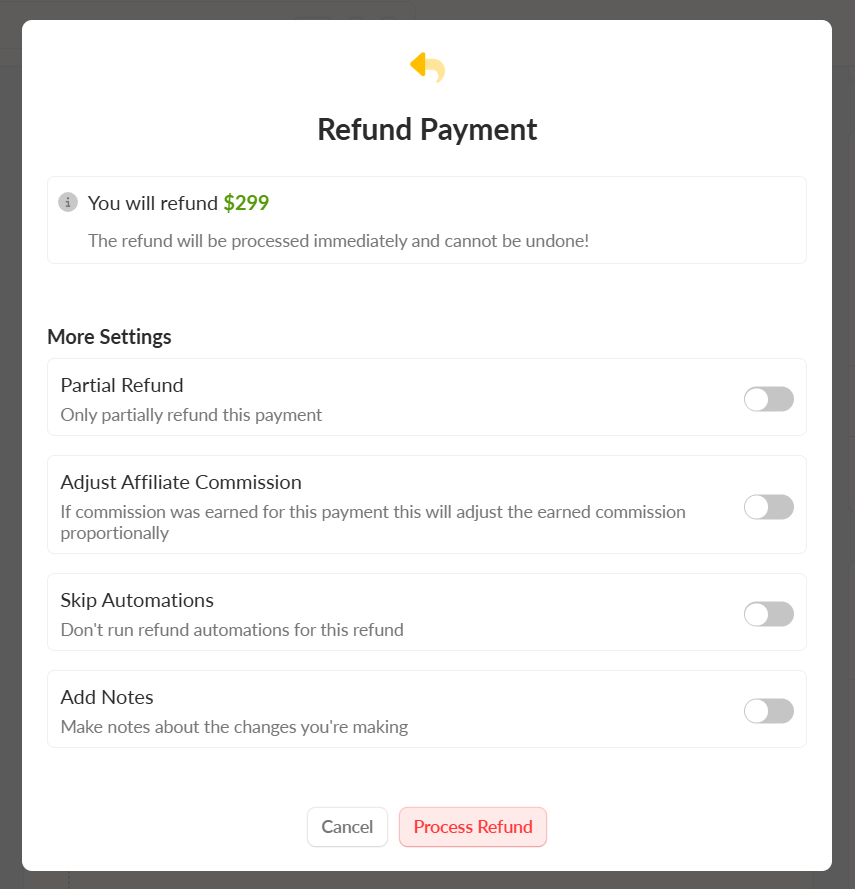
After selecting Refund Payment from the payment’s options, just confirm the payment amount displayed, and click Process Refund
Issuing a Partial Refund on a Payment
After selecting Refund Payment from the payment’s options, click the Partial Refund toggle, and enter a partial amount to refund.
Select which Products or Line Items to mark as refunded, and click Process Refund.
If a Product is selected, this will also trigger any Payment Refunded automation events set up at the product level.
Refund All Payments on an Order
Use this feature with caution, as this will refund all payments on an order. If the order is for a Subscription or Payment Plan, this feature would refund all payments that have ever been collected for it – this cannot be undone.
From an Order Record, you will have the option to refund all payments that have been collected. Click on the order’s options button located at the top-right corner and proceed with the refund.
Skip Automations on Refunds
When issuing a refund, you can use the Skip Automations toggle to prevent any of your Payment Refunded automation events from running.
This is useful when a customer has accidentally purchased twice and you want to refund one of the orders without removing their access to the course, membership, or other product they purchased.
Activity history on the order, subscription or payment plan record will show “Automations were skipped” on the refund entry.
Some actions will still happen even when automations are skipped: taxes will be updated, sales data will still sync to your CRM, and developer Event Webhooks will still run.