

Spiffy’s simple approach to reports gives you quick access to the data you are looking for, through the use of filters and groupings.
Filtering will allow you to omit data, and view specific results based on the filter selected.
Grouping data will let you take a bit of a higher-level view of your results, by grouping similar data in your report.
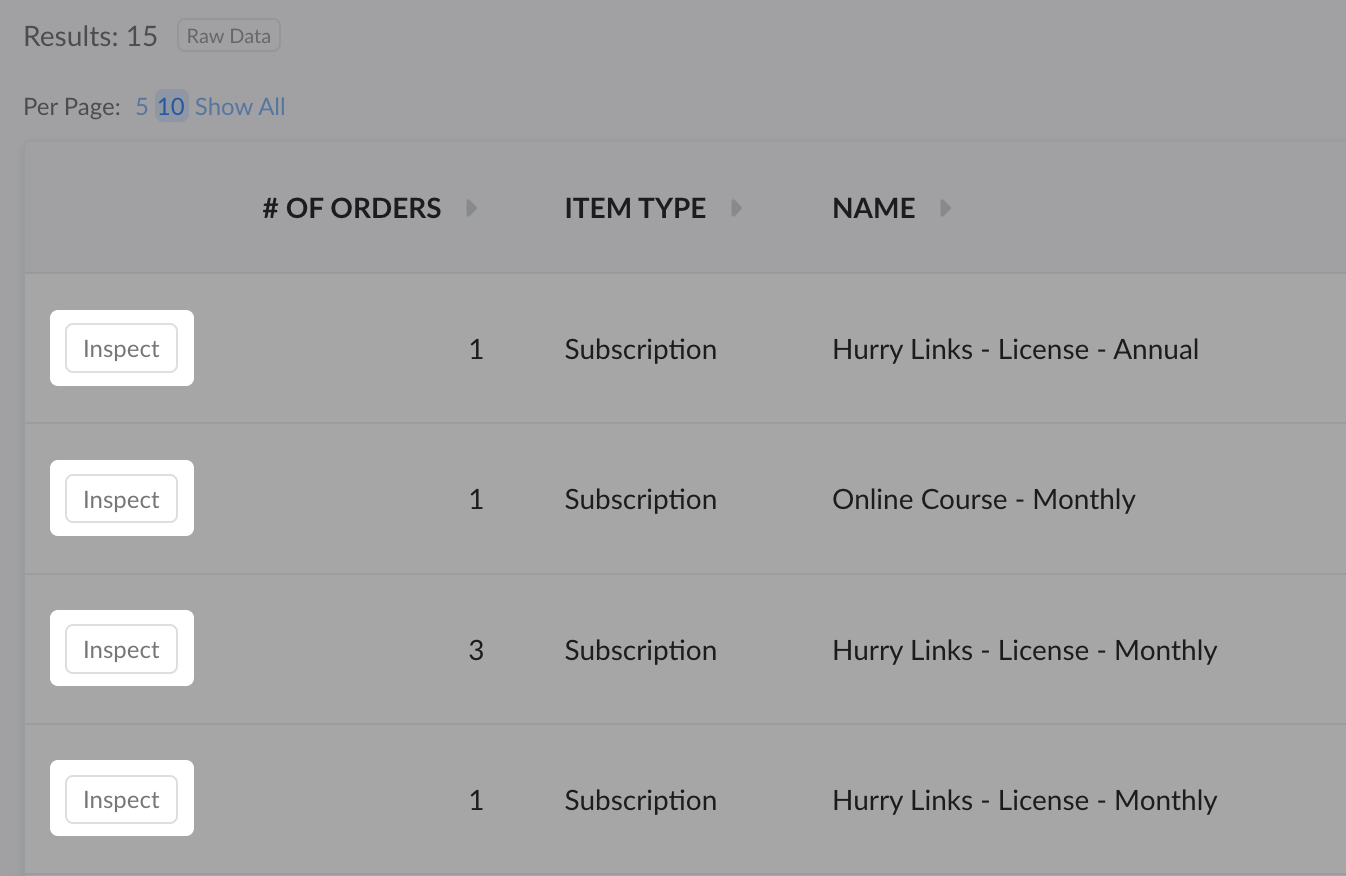
Inspecting grouped data will expand and separate the grouped results. When results are grouped, each line will have an ‘Inspect’ button that you can click
Filtering
You can filter by lots of different data points in each report type. Each filter will have a simple configuration popup so you can edit each filter.

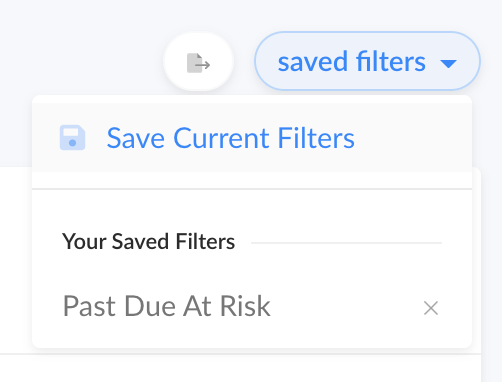
You can save your configured filters for easy access by clicking the Saved Filters button and then select Save Current Filters and give your filter configuration a name.
Grouping Results
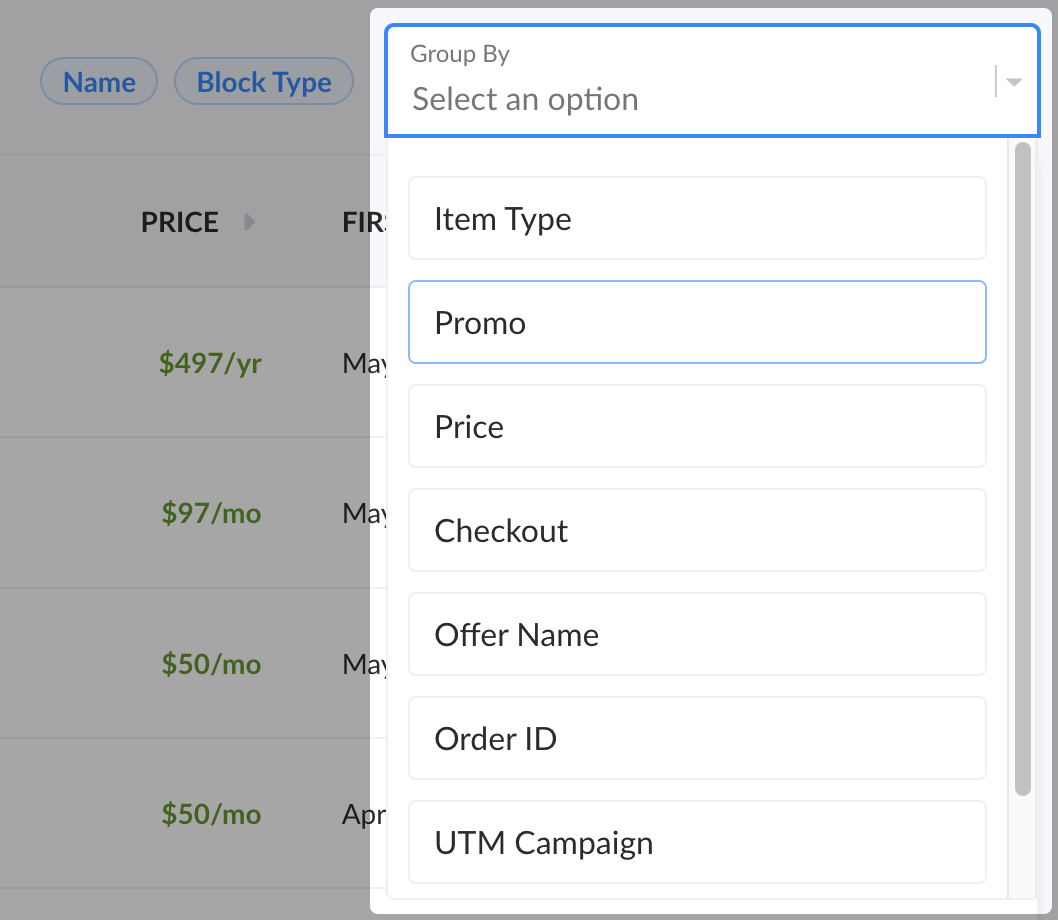
You can group results by a number of different options by clicking the Group By dropdown.
You can view all the results for a specific group, by clicking the Inspect button on a result line.
Exporting Results
Easily export your report with filters to a CSV file. This can be used for more in-depth analysis and reporting.