Spiffy’s direct integration with ShipStation allows you to create shipping orders when customers purchase.
Each integration action is linked to a specific ShipStation product. If you’re selling multiple items on one checkout with integration actions tied to each, you can choose whether to add all items to one ShipStation order or create a new one each time.
Here’s a rundown of the powerful features you will have available:
- Customer Information Sync
Basic customer info will automatically sync to ShipStation - Purchase & Product Automation
Set up automation triggers for products, checkouts, addons, and upsells. Learn More →
How to Connect ShipStation
1. When logged into ShipStation, click the Settings icon at the top right. Then, select Account > API Settings.
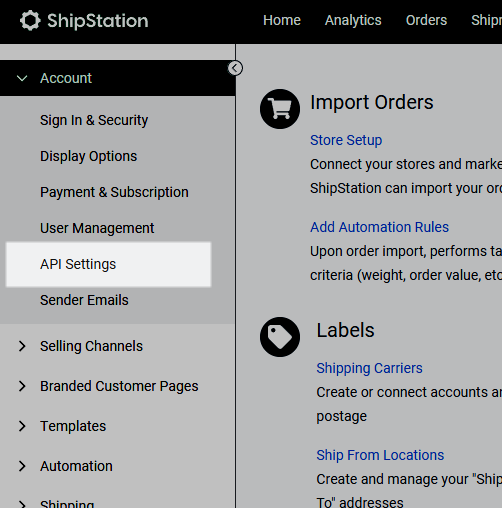
2. Generate an API Key using the V1 API. ShipStation has a 12-month max limitation on API Keys, so a new key will need to be generated based on the option you selected when generating the API Key.
Important: Once you close the window in ShipStation that shows your API Key and Secret, you will not be able to view them again.
3. Copy the API Key and API Secret and paste into Spiffy’s ShipStation Integration Settings.
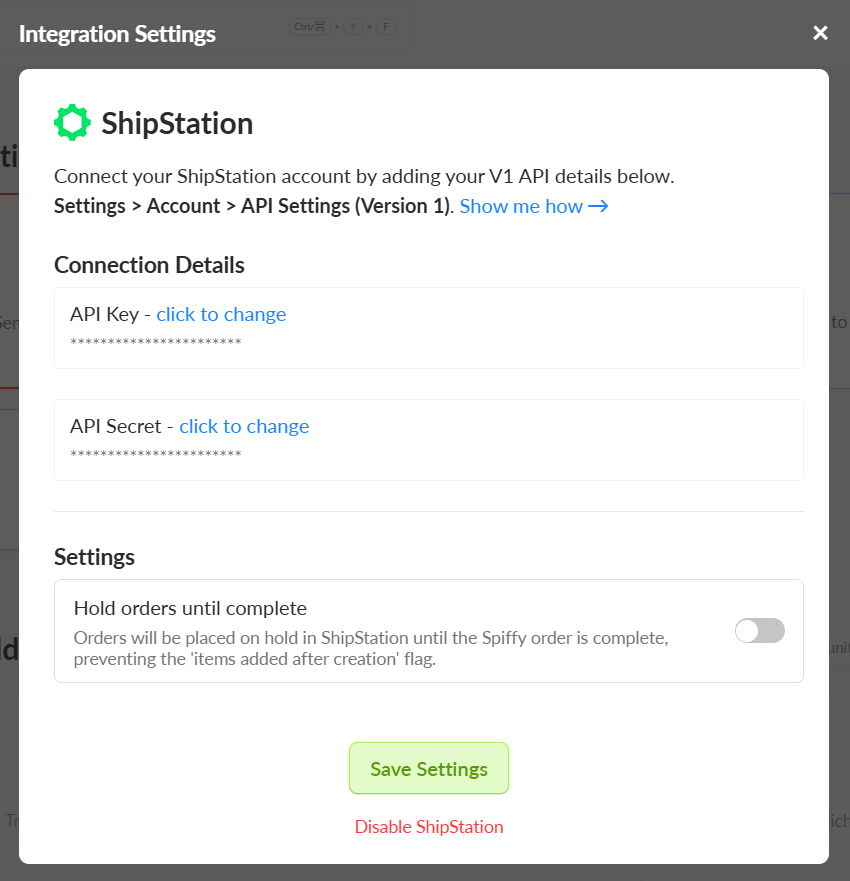
4. Turn on the toggle Hold order until complete if you want Spiffy to wait to create a ShipStation order until all steps of a checkout have been completed. When enabled, the ShipStation order will be placed on hold and then move to awaiting shipment when the checkout is completed.
5. Click Enable ShipStation
You’ve now connected your ShipStation account to Spiffy, don’t forget to set up Automations!
Learn more about Automations →
Integration Actions
ShipStation integration actions are best used at the Product level for Product Purchase Automation and at the Checkout level for Checkout Purchase Automation.
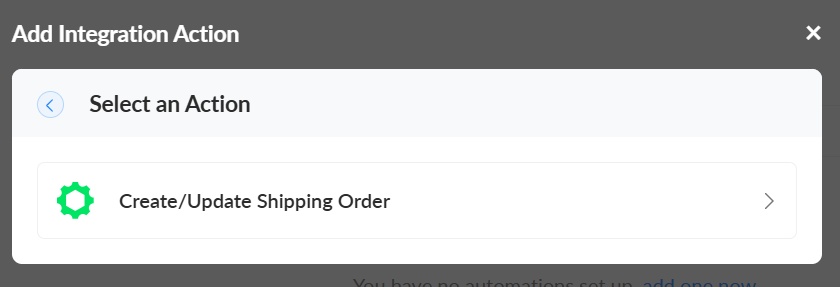
When setting up an integration action on your Checkout or Product select the ShipStation product from the dropdown list. Use the toggle Update existing ShipStation order if you want Spiffy to append existing orders in ShipStation.
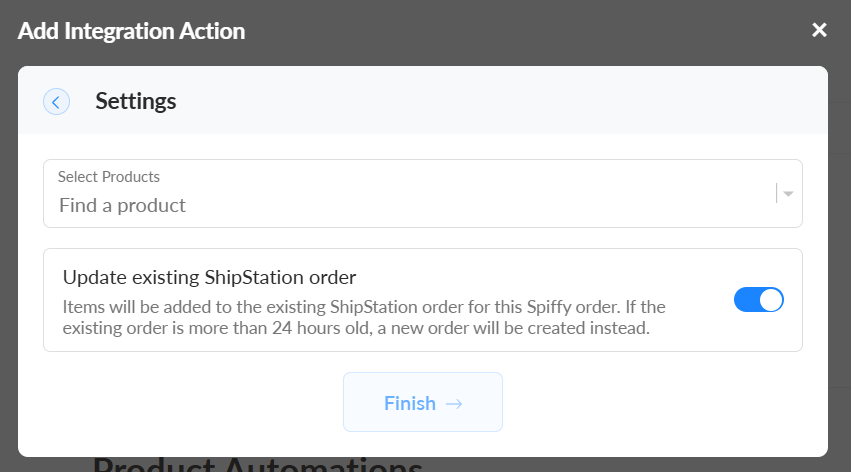
When Update existing ShipStation order is on and Hold order until complete is enabled, the order is placed on hold in ShipStation until the Spiffy order is fully complete. Once the order completes in Spiffy, the hold is automatically released.